
Congratulations on the purchase of your PRO KIT SL3!
Here are the first steps to start using your camera R50 with your Apple cell phone.
1) Charge the battery before use. It is not fully charged at the time of purchase.
2) Once charged, insert the battery into the camera
3) The cameras sold directly by Exposio already have a basic configuration. They are ready to be paired with your cell phone.
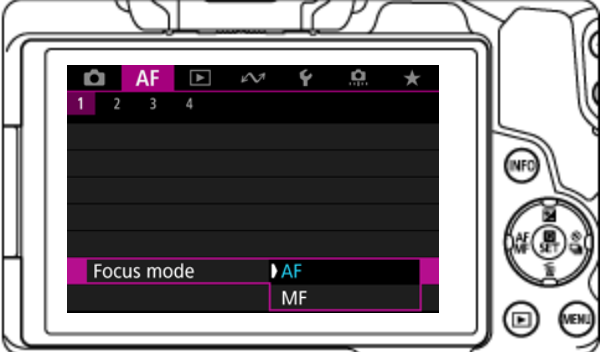
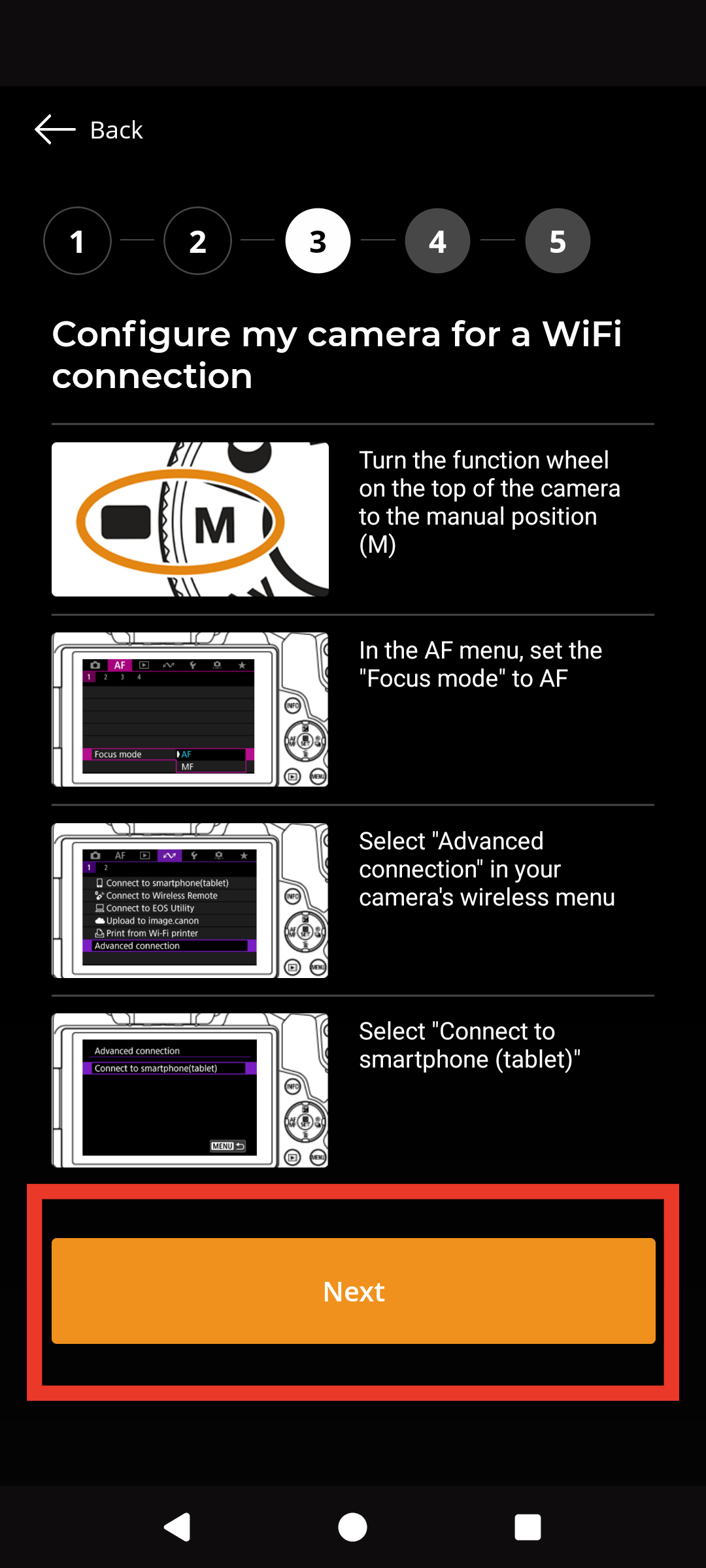
4) In the camera AF menu, select Focus mode and select AF.
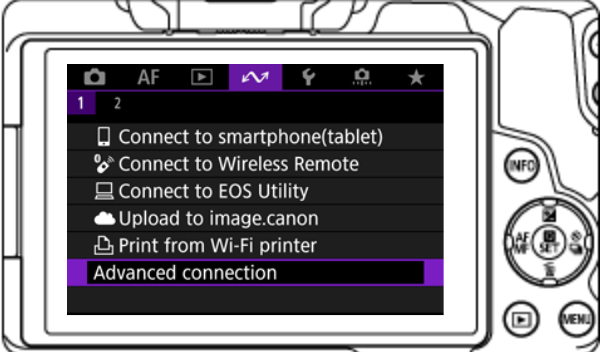
5) Go in the WI-FI menu and then select Advenced connection.
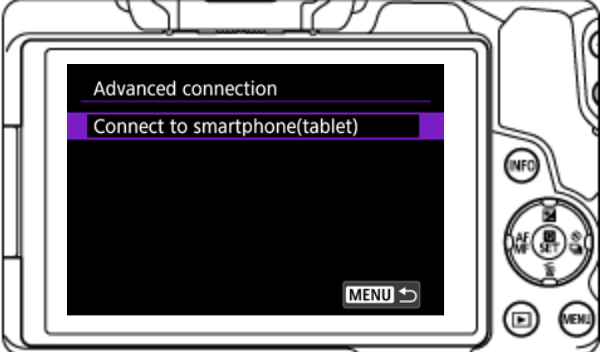
6) In the Advenced connection menu, select Connect to smarthphone(tablet).
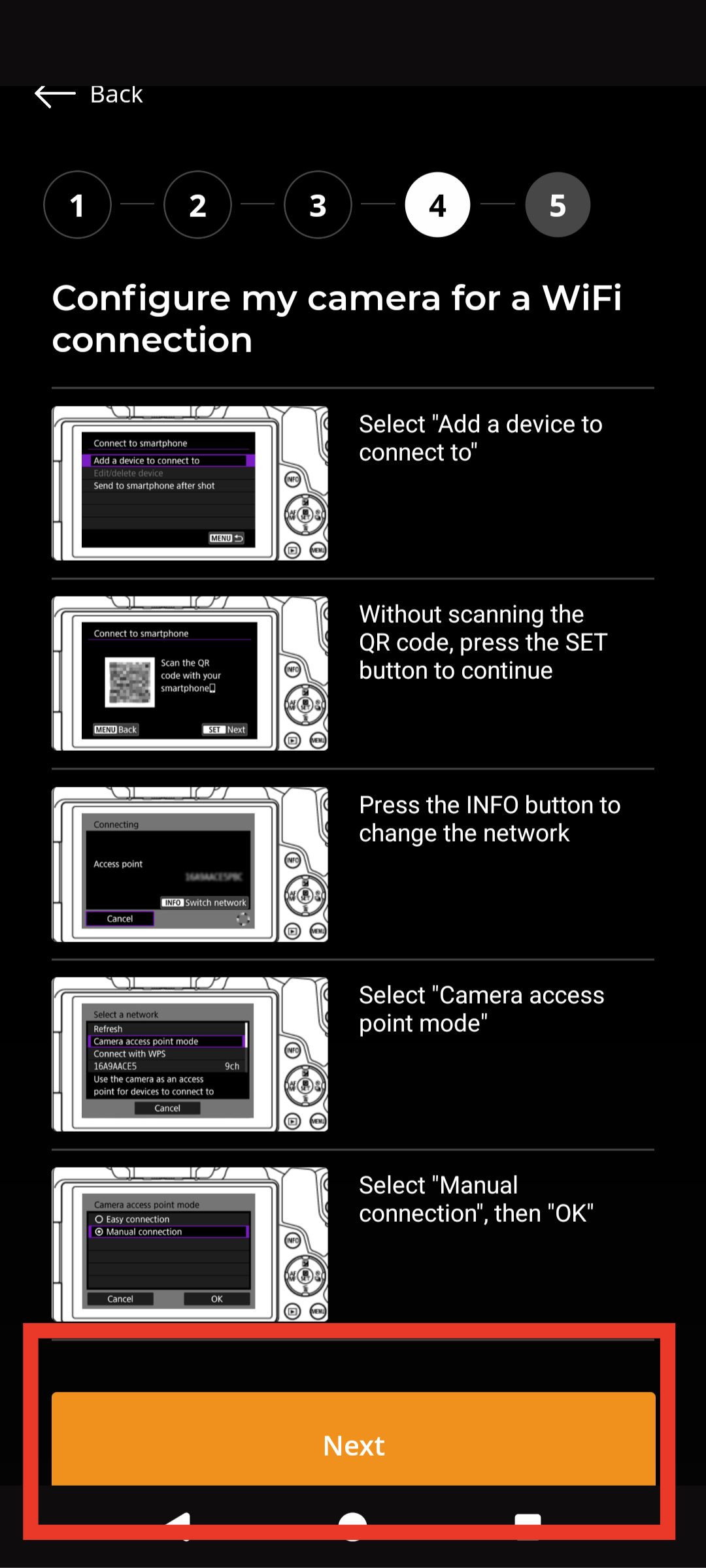
7) Select Add a device to connect to.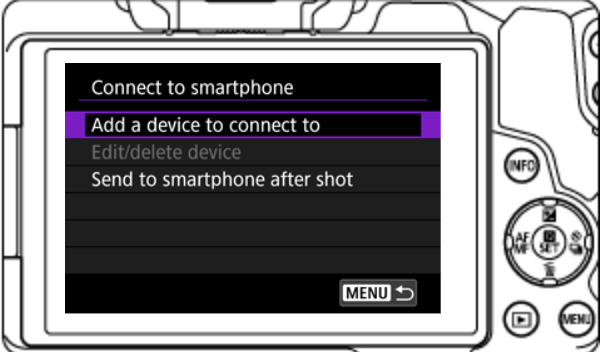
8) On the Connect to smartphone page, click on the Next button.
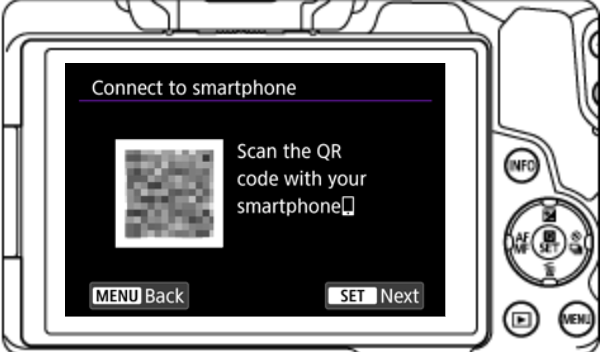
9) When you land on the Connecting page, click on INFO Switch network.
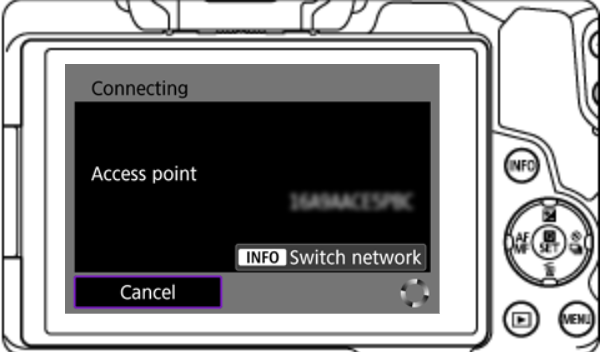
10) Select Camera acces point mode.
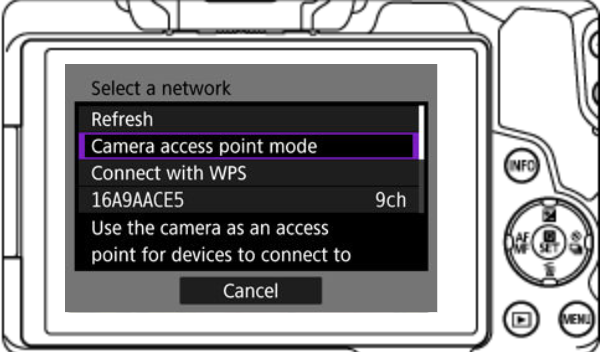
11) Select Manual connection.
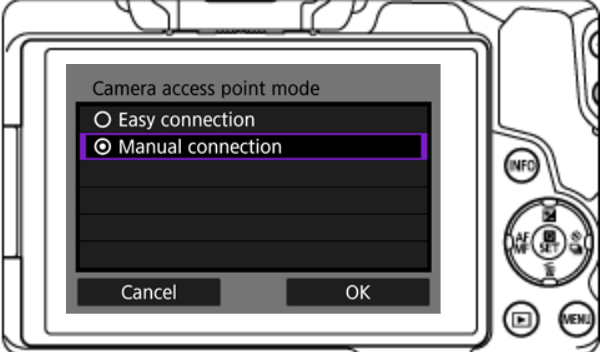
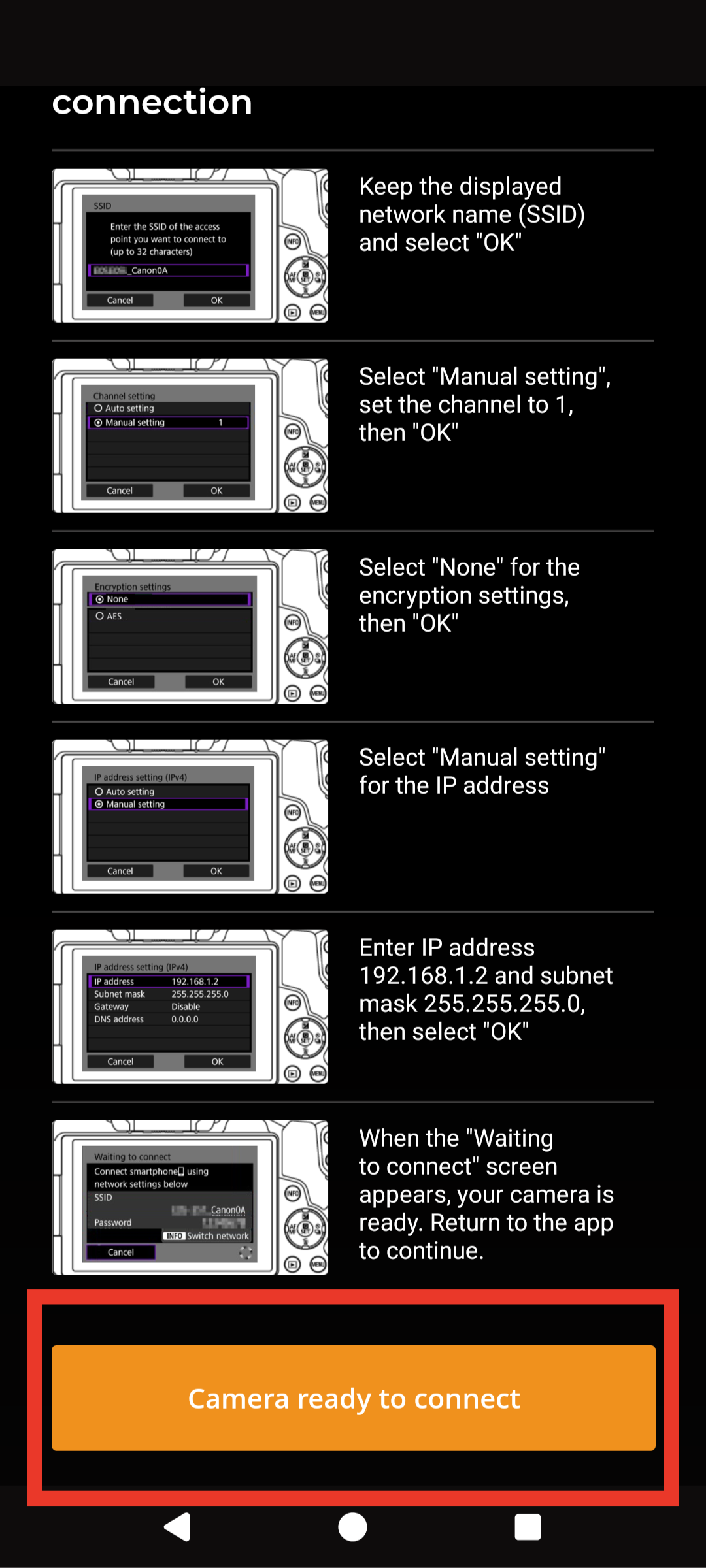
11) You will then land on SSID page. Simply click on OK.
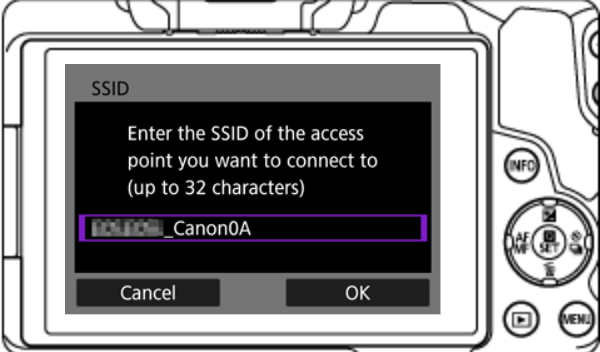
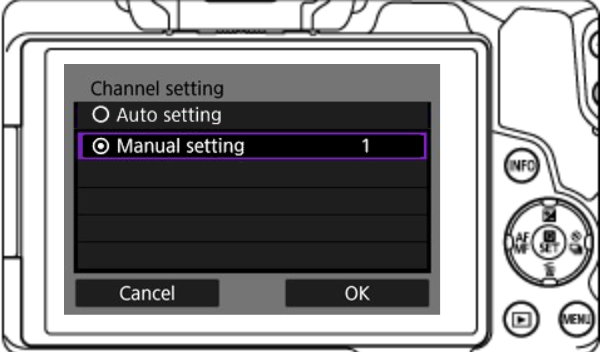
12) In Channel Setting, use the down arrow to select Manual setting then click on OK.
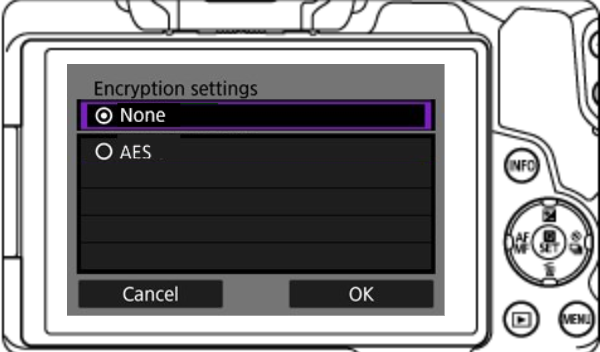
13) In Encryption settings, select the None option and then click on ok.
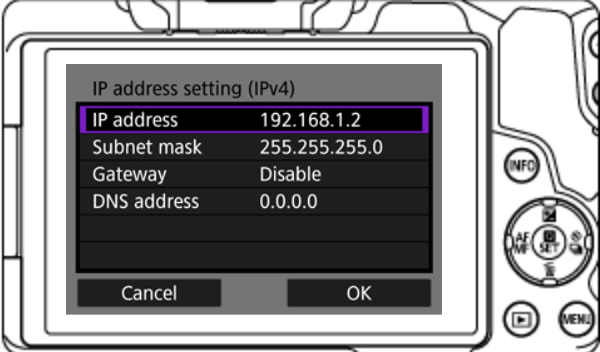
13) In the IP address setting (IPv4), select Manual setting.
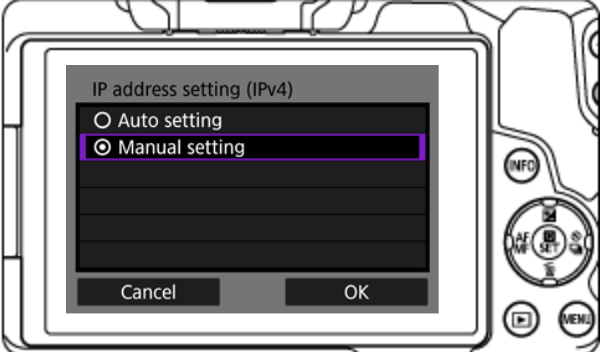
14) Keep the settings as they are in IP address setting (IPv4) page. Just click on OK to continue.
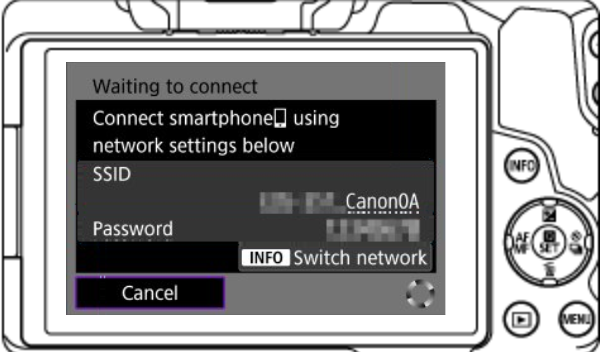
15) The Waiting to connect page should show a spinnig indicator. No password should be displayed.
iOS device configuration
16) Open the Exposio app. Make to be logged into your account.

17) Open the menu on the upper right.

18) Select Configure my Pro Kit

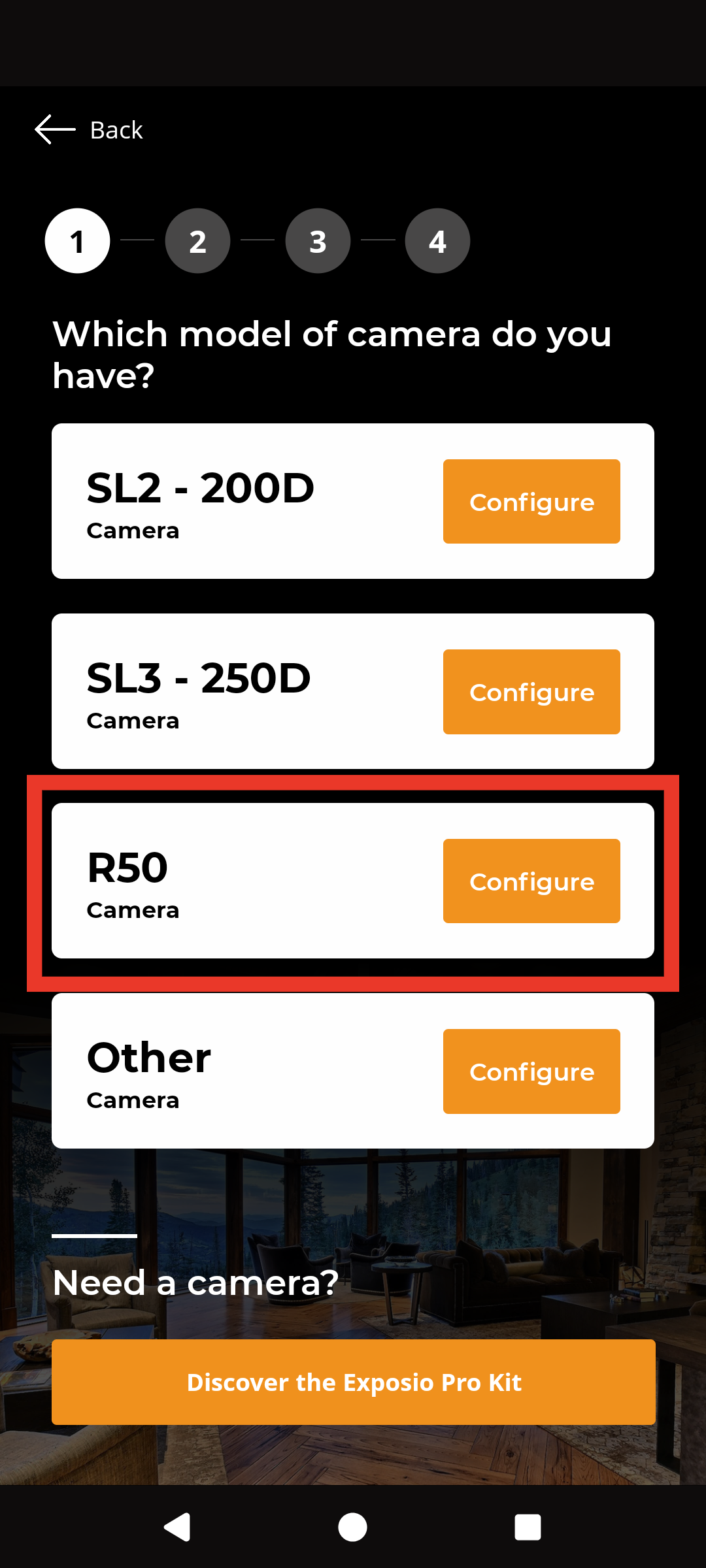
19) Select your R50 Camera
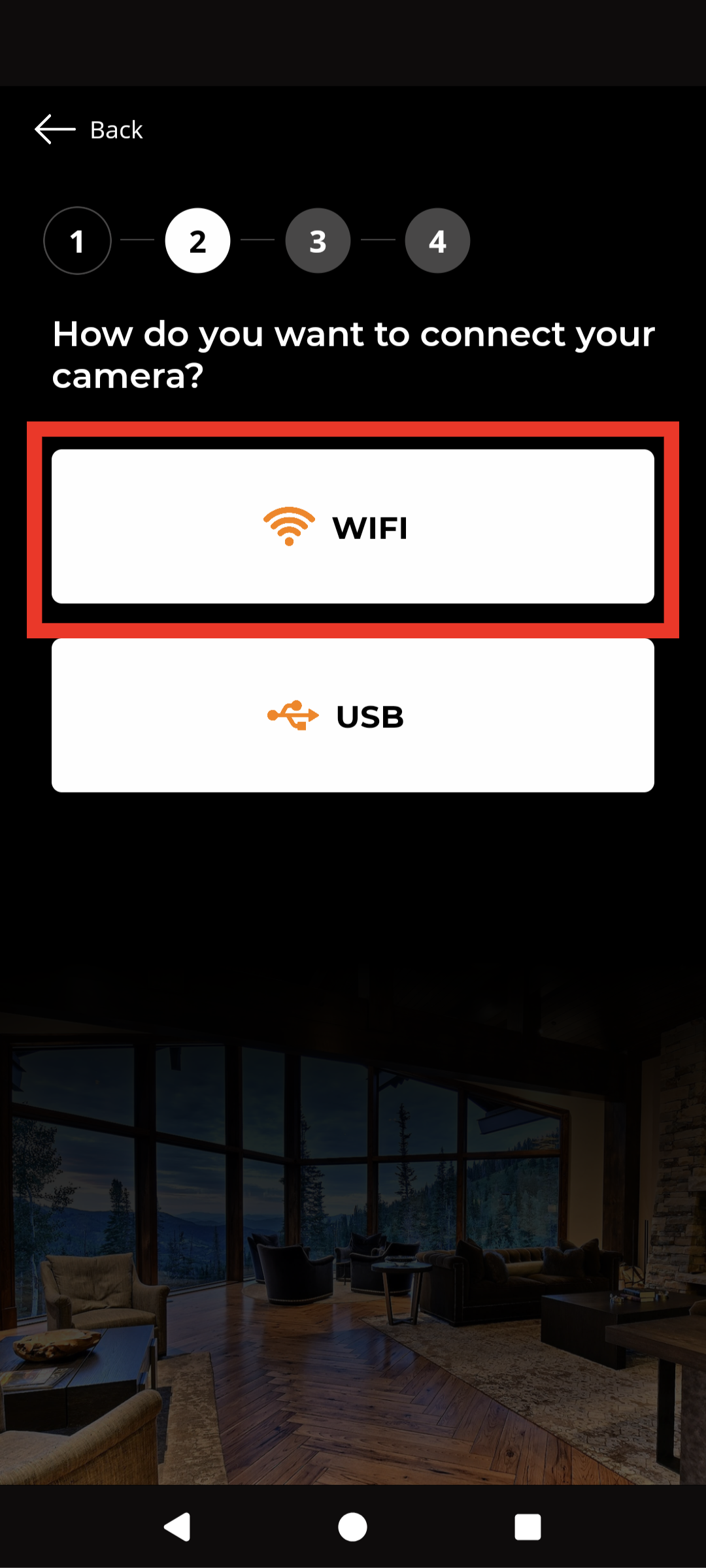
20) Select WIFI
21) If you followed the steps 4 to 15, you can click next on these pages.
22) Select Camera ready to connect
23) Your device will connect to the camera.
Don't forget! Everything is now controlled by the cell phone. It is no longer necessary to take pictures with the camera buttons. For the manual focus, press on the image preview in your cell phone and for the picture taking, the big circle in the center.
How to reconnect
Once your phone is registered in the camera, it is much faster to connect to the application.